Smart Label Printer 120/220/Pro
Low Level Application Programming Interface
Revised April 1998
Manual Part Number: 22-70031-01
Contents
Chapter 1 Open and Close Serial Port
Chapter 2 Change Printer’s Baud Rate
Chapter 3 Print and Compressed Print
Chapter 4 Printing under Different Baud Rates
Chapter 5 More SLP API Functions
What is confusing… is when a single system admits to two or more descriptions on different levels which nevertheless resemble each other in some way. Then we find it hard to avoid mixing levels when we think about the system, and can easily get totally lost.
Douglas Hofstadter, Godel, Escher, Back: An Eternal Golden Braid
The main purpose of our Smart Label Printer Developer Kit (SLPDK) is to hide the complexity and confusion between the low level machine commands and the high level programming environment. SLPDK is composed of a group of Application Programming Interfaces (APIs) that encapsulate most of low level machine commands. We will refer to it as Slpapi32.dll or SLP API.
About the Smart Label Printer
The Smart Label Printer API, or Slpapi32.dll in short, targets our printer models SLP Pro, SLP 120 and SLP 220. These printers are bitmap devices that print all information as graphic images. These printers communicate with the host computer over a serial (RS-232) line. If you are interested in the printers’ firmware specification, please refer to the Smart Label Printer 120/220 Technical Specification document.
Who Should Use This Developer Kit
Application developers who prefer not to get involved with low level printer commands or with direct serial port communication can use the Developer Kit to develop 32-bit Window’s application programs that print to the SLP Pro, SLP 120 or SLP 220.
How Can SLP Developer Kit Help You
In today’s Windows environment, you may not access the serial ports directly. To accomplish serial data transfer in Windows 95 or NT, a programmer uses the Win32 Communication API, or Win32c for short. Win32c traces its roots to 16-bit Windows and the Windows COMM API and is highly specialized for serial ports and modems.
Our Slpapi32.dll encapsulates all serial communications complexity that the RS-232 standard requires. SLP API is perfect for the developer who does not want to go through the tedious function calls with Win32c to open port, to close port, and to configure port. The developer who uses SLP API does not need to know the DCB (Device Control Block) structure and how DCB is used to configure a port and all the details of handshaking and flow control between the printer and host computer.
SlpApi.dll is very simple to use. It consists of standard C functions that can be called by any program that is written in Pascal, Visual C++, Borland C++, UNIX C, Visual basic or any other language. We will cover all SLP API functions from Chapter 1 to Chapter 5.
What’s on Diskette
The diskette content includes Slpapi32.dll, SlpApi32.lib, three header files, source code and executables for all the sample programs. The files in Kit 2 are organized in three directories separating, sample source code, DLLs and LIBs.
Each set of source code files on the diskette is accompanied by a Visual C++ 5 project workspace (.dsw) file. You can open a project in Visual C++ by opening the corresponding project workspace file. If you are going to modify the source code and rebuild the applications, copy the files to your hard disk first. All the sample codes use MFC version 4. You need to have Microsoft Visual C++ version 5.0 to recompile or rebuild the sample application programs included in this diskette.
Feedback
If you have any questions or have other topics you would like us to explore in this Developer Kit in the future, please fax us at (408) 433-3261, Attention: SLP Development Group - SLP API.
Open and Close Serial Port
OBJECTIVE: Explain when and where to open and close the serial port.
Opening a port is very simple, just call SlpOpenPort() after you create your main window or dialog. You call this function inside function OnCreate() in MFC, or message loop under case WM_CREATE in SDK. If you call SlpOpenPort() successfully, it returns a handle to the port it opened, otherwise, it returns NULL. After you have called SlpOpenPort(), you have to call SlpInitDCB() to initialize all the hardware and control settings before you can send anything to the printer. Usually, you only need to call SlpOpenPort() and SlpInitDCB() once in your application.
Always remember to close a serial port when you are done using it. If you forget to close the port, it stays open and other applications will not be able to open it or use it. Call SLPClosePort() inside message handler OnDestroy() in MFC or message loop under case WM_DESTROY in SDK. The following are detailed description of these three functions.
The following are function prototypes, descriptions and examples that we will discuss in this Chapter.
SlpOpenPort
Description This function will open a serial port that connects to Smart Label Printer.
It returns a HANDLE about the port opened. You may call this function once.
Syntax HANDLE SlpOpenPort(char* portName, int* error)
Parameters
portName NULL terminate string about a comm port name, i.e. COM1.
error Pointer to integer type. If SlpOpenPort() function is not successful, error will point to a memory location that holds the error code. You can refer to header file slpapi32.h for error code.
Returns Handle to the port opened.
|
Example: |
//open com port here: int error; hComm = SlpOpenPort("COM1", &error); if( error >= 0) MessageBox("Error in SlpOpenPort", "Slp Command Error", MB_ICONEXCLAMATION | MB_OK ); if (!SlpInitDCB(hComm)) MessageBox("Error in SlpInitDCB", "Slp Command Error", MB_ICONEXCLAMATION | MB_OK); |
SlpClosePort
Description This function will close a serial port that connects to Smart Label Printer. Always close a serial port when you are done using it.
Syntax HANDLE SlpClosePort(HANDLE hComm, int* error)
Parameters
hComm Handle to the port opened by SlpOpenPort function.
error Pointer to integer type. If SlpClosePort function is not successful, error will point to a memory location that holds the error code. You can refer to header file slpapi32.h for error code.
Returns Boolean. If close successful it returns true otherwise it returns false.
|
Example: |
The following are examples in MFC and SDK. For MFC: void CSlpBaudRateDemoDlg::OnDestroy() { CDialog::OnDestroy(); int closeErr; if(hComm != NULL) if (SlpClosePort(hComm, &closeErr) == FALSE) MessageBox("Error in SlpClosePort", "Close Port Error", } |
|
|
For SDK: case WM_DESTROY: int closeErr; if(hComm != NULL) if (SlpClosePort(hComm, &closeErr) == FALSE) MessageBox("Error in SlpClosePort", "Close Port Error", return 0; |
SlpInitDCB
Description This function configures a communication device according to the specifications in a device-control block (a DCB structure). The function reinitializes all hardware and control settings, but it does not empty output or input queues.
Syntax BOOL SlpInitDCB(HANDLE hComm)
Parameters
hComm Handle to the port opened by SlpOpenPort function.
Returns Boolean. If close successful it returns true, otherwise it returns false.
Remarks Must call this function after you call SlpOpenPort()
Change Printer’s Baud Rate
OBJECTIVE: Explain how to change SLP printer’s baud rate.
When the SLP printer is turned on, it defaults to 9600 baud. You can change the baud rate to 19200 baud, 38400 baud, and 57600 baud by calling SlpChangeBaudRate(). The only exception is that SLP Pro does not support 57600 baud.
The following is the function prototypes, description of the functions and examples in MFC. All examples in this Developer Kit are built using MFC Wizard. The code in bold needs to be added to the source code generated by MFC Wizard.
A full listing of the source code for this chapter is included in the Kit 2 diskette content.
SlpChangeBaudRate
Description This function will change printer’s baud rate. The default baud rate is 9600 baud.
Syntax BYTE SlpChangeBaudRatePort(HANDLE hComm, BYTE baudRate)
Parameters
hComm Handle to the port opened by SlpOpenPort function.
baudRate A predefined value in the form of BAUDRATE_nn, where nn is actual baud rate, i.e., BAUDRATE_9600
The valid baud rates are 9600, 19200, 38400, 57600 (Note: The SLP Pro does not support 57600).
Returns RSP_CMD_CHECK if successful, otherwise zero or error message. Please refer to file slpapi32.h for numerical values of each error code.
Example:
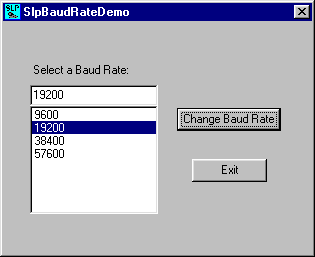
The SlpBaudRateDemo application creates a single dialog that has a Combo Box control for user to select a baud rate and change it by pressing "Change Baud Rate" button. You can follow the step by step instructions to create this application.
Steps:
|
Control |
Control Name |
ID |
Attributes |
|
Button |
Change Baud Rate |
IDC_BUTTON_ |
Visible, tab-stop |
|
Button |
Exit |
IDCANCEL |
Visible, tab-stop |
|
Combo Box |
|
IDC_COMBO_ |
Visible, tab-stop |
|
Static Text |
Select a Baud Rate |
IDC_STATIC_ |
Visible |
Note:
// CSlpBaudRateDemoDlg message handlers
BOOL CSlpBaudRateDemoDlg::OnInitDialog()
{
CDialog::OnInitDialog();
// Add "About..." menu item to system menu.
// IDM_ABOUTBOX must be in the system command range.
ASSERT((IDM_ABOUTBOX & 0xFFF0) == IDM_ABOUTBOX);
ASSERT(IDM_ABOUTBOX < 0xF000);
CMenu* pSysMenu = GetSystemMenu(FALSE);
if (pSysMenu != NULL)
{
CString strAboutMenu;
strAboutMenu.LoadString(IDS_ABOUTBOX);
if (!strAboutMenu.IsEmpty())
{
pSysMenu->AppendMenu(MF_SEPARATOR);
pSysMenu->AppendMenu(MF_STRING, IDM_ABOUTBOX, strAboutMenu);
}
}
// Set the icon for this dialog. The framework does this automatically
// when the application’s main window is not a dialog
SetIcon(m_hIcon, TRUE); // Set big icon
SetIcon(m_hIcon, FALSE); // Set small icon
// TODO: Add extra initialization here
m_baudRate.AddString("9600");
m_baudRate.AddString("19200");
m_baudRate.AddString("38400");
m_baudRate.AddString("57600");
//set default
m_baudRate.SetWindowText("9600");
//open com port here:
int error;
hComm = SlpOpenPort("COM1", &error);
if( error >= 0)
MessageBox("Error in SlpOpenPort", "Slp Command Error",
MB_ICONEXCLAMATION | MB_OK );
if (!SlpInitDCB(hComm))
MessageBox("Error in SlpInitDCB", "Slp Command Error" ,
MB_ICONEXCLAMATION | MB_OK);
return TRUE; // return TRUE unless you set the focus to a control
}
void CSlpBaudRateDemoDlg::OnDestroy()
{
CDialog::OnDestroy();
int closeErr;
if(hComm != NULL)
if (SlpClosePort(hComm, &closeErr) == FALSE)
MessageBox("Error in SlpClosePort", "Close Port Error" ,
MB_ICONEXCLAMATION | MB_OK);
}
void CSlpBaudRateDemoDlg::OnButtonChangeBaudrate()
{
//This demonstrates changing of baud rate by SlpChangeBaudRate() //function in both SLP printer and your computer. For example, when //SLP printer’s baud rate is changed to 38400, your computer’s baud rate //will also be changed to the same baud rate at the same time.
int newBaudRate;
int baudRateSel = m_baudRate.GetCurSel();
//get the right baudrate
switch (baudRateSel)
{
case 0 : newBaudRate = BAUDRATE_9600;
break;
case 1 : newBaudRate = BAUDRATE_19200;
break;
case 2 : newBaudRate = BAUDRATE_38400;
break;
case 3 : newBaudRate = BAUDRATE_57600;
break;
default : newBaudRate = BAUDRATE_9600;
break;
}
//change baud rate to the one selected:
if (hComm != NULL)
if(SlpChangeBaudRate(hComm, newBaudRate))
{
//display message box for current baud rate:
switch (baudRateSel)
{
case 0 :MessageBox("Baud Rate 9600",
"Test SlpChangeBaudRate",
MB_ICONEXCLAMATION | MB_OK);
break;
case 1 : MessageBox("Baud Rate 19200",
"Test SlpChangeBaudRate",
MB_ICONEXCLAMATION | MB_OK);
break;
case 2 : MessageBox("Baud Rate 38400",
"Test SlpChangeBaudRate",
MB_ICONEXCLAMATION | MB_OK);
break;
case 3 : MessageBox("Baud Rate 57600",
"Test SlpChangeBaudRate",
MB_ICONEXCLAMATION | MB_OK);
break;
default : MessageBox("This is not an acceptable
baud rate", "Test SlpChangeBaudRate" , MB_ICONEXCLAMATION | MB_OK);
break;
}
}
else MessageBox("Cannot change Baud Rate. Previous Baud Rate
retained.", "Test SlpChangeBaudRate",
MB_ICONEXCLAMATION | MB_OK);
}
When you run the program, you will get the following dialog:
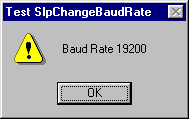
After you pick up a baud rate, for example to19200, and press "Change Baud Rate" button, another message box will show the changed baud rate.
Print and Compressed Print
OBJECTIVE: Explain how the SLP printer prints text and graphics.
You can use SLP printer to print text or graphics by following these simple two steps.
Make a bitmap:
SLP printer will translate one byte of data into an image of eight "dots" (1=black 0=white), arranged horizontally with most-significant bit representing the left-most dot. For example, the following image can be represented by some finite hex number sequence next to each image:
|
IMAGE |
HEX NUMBER |
|
x x x x x x |
11 11 11 |
|
xx xx xx xx xx xx |
33 33 33 |
|
xxx xxx xxx xxx xxx xxx |
77 77 77 |
|
xxxxxxxxxxxxxxxxxxxxxxxx |
FF FF FF |
Call SlpPrint() or SlpCompressedPrint()
You need to send to SLP printer these four lines of hex numbers that represented the above image line by line. For example:
i.e. BYTE pattern1[ ] = {0x11, 0x11, 0x11};
BYTE pattern2[ ] = {0x33, 0x33, 0x33};
BYTE pattern3[ ] = {0x77, 0x77, 0x77};
BYTE pattern4[ ] = {0xFF, 0xFF, 0xFF};
e.g. SlpPrint(hComm, pattern1, 3);
SlpPrint(hComm, pattern2, 3);
SlpPrint(hComm, pattern3, 3);
SlpPrint(hComm, pattern4, 3);
"3" is the size of each array in bytes, i.e., pattern1 is 3 bytes.
The following are the function prototypes, description of the functions and examples. All examples in this kit were built using MFC Wizard. Code that should be added to the generated MFC Wizard code appears in bold.
A full listing of the source code for this chapter is included in the Kit 2 diskette content.
SlpPrint
Description This function will print a bitmap data on the printer in the primary color black and white.
Syntax BOOL SlptPrint (HANDLE hComm, BYTE* data, BYTE nByte)
Parameters
hComm Handle to the port opened by SlpOpenPort function
data Pointer to BYTE array of bitmap pattern.
nByte Data length in byte.
Returns Boolean. If you call the function successfully, it will return true otherwise it returns PRINT_CMD_FAILED or false.
SlpPrintCompressed
Description This function will print compressed bitmap data on the printer in the primary color black and white. The data is decompressed after the printer receive them and printed in the same manner as data is sent by SlpPrint() function. SlpPrintCompressed() is used to reduce transmission time when data is more suitable to be stored in the form of Run-length Encoding (RLE).
Syntax BOOL SlpPrintCompressed (HANDLE hComm, BYTE* data, BYTE nByte)
Parameters
hComm Handle to the port opened by SlpOpenPort function
data Pointer to BYTE array of bitmap pattern.
nByte Data length in byte.
Returns Boolean. If you call the function successfully, it will return true otherwise it returns PRINT_CMD_FAILED or false.
Remarks RLE always has bit 7 of a byte of bitmap data be clear(equal zero). Bit 6 represents color to run (0 = white, 1=black), and bit 0 through 5 specify the length (in pixels) of the run. For example:
00001111 prints a run of 15 white pixels
01010001 prints a run of 17 black pixels
If bit 7 is set (equal one), then bits 0 through 6 contain literal bitmap (binary) data.
The example in this chapter will show you how to make a literal bitmap data and RLE bitmap data to be sent to printer.
SlpVerticalTab
Description This function will advance the paper the number of dots specified by the parameter. Commonly used to skip over a blank section of a label.
Syntax BYTE SlpVerticalTab (HANDLE hComm, int nDots)
Parameters
hComm Handle to the port opened by SlpOpenPort function
nDots Integer value that represents the number of dots to be moved vertically.
Returns BYTE. If you call the function successfully, it will return true otherwise it returns VERTTAB_CMD_FAILED or false.
SlpFormFeed
Description This function will advance the paper to the next separator mark. If using an SLP 120 or 220 in "continuous mode", the label will advance according to the value most recently assigned to the form length setting (default value is 6").
Syntax BYTE SlpFormFeed (HANDLE hComm)
Parameters
hComm Handle to the port opened by SlpOpenPort function
Returns BYTE. If you call the function successfully, it will return true otherwise it returns VERTTAB_CMD_FAILED or false.
SlpLineFeed
Description This function will advance the paper one dot. Commonly used to skip a blank row of dots.
Syntax BYTE SlpLineFeed (HANDLE hComm)
Parameters
hComm Handle to the port opened by SlpOpenPort function
Returns BYTE. If you call the function successfully, it will return true otherwise it returns VERTTAB_CMD_FAILED or false.
Example:
The SlpPrintDemo application creates a single dialog that has five control buttons. The top three are used to command the printer to print three different image patterns. The other two buttons are for "Line Feed" and "Exit". You can follow the step by step instructions to create the similar application.
Steps
|
Control |
Control Name |
ID |
Attributes | |
|
Button |
Button 1 | IDC_BUTTON1 | Visible, tab-stop | |
Button | Button 2 | IDC_BUTTON2 | Visible, tab-stop | |
Button | Button 3 | IDC_BUTTON3 | Visible, tab-stop | |
Button | Feed Label 1 Line | IDC_MOVE_ONE_LINE | Visible, tab-stop | |
Button | Exit | IDCANCEL | Visible |
Note:
//open com port here:
int error;
hComm = SlpOpenPort("COM1", &error);
if( error >= 0)
MessageBox("Error in SlpOpenPort", "Slp Command Error",
MB_ICONEXCLAMATION | MB_OK );
if (!SlpInitDCB(hComm))
MessageBox("Error in SlpInitDCB", "Slp Command Error" ,
MB_ICONEXCLAMATION | MB_OK);
void CSlpBaudRateDemoDlg::OnDestroy()
{
CDialog::OnDestroy();
int closeErr;
if(hComm != NULL)
if (SlpClosePort(hComm, &closeErr) == FALSE)
MessageBox("Error in SlpClosePort", "Close Port Error" ,
MB_ICONEXCLAMATION | MB_OK);
}
void CSlpPrintDemoDlg::OnButton1()
{
// This will show you how to use SlpPrint() function
//create bitmap patterns:
//Please refer to page 14 "Make a Bitmap" to create a bitmap pattern
BYTE pattern1[] = {0x01,0x00,0x01,0x00,0x01,
0x00,0x01,0x00,0x01,0x00,
0x01,0x00,0x01,0x00,0x01,
0x00,0x01,0x00,0x01,0x00,
0x01,0x00,0x01,0x00,0x01,0x00};
BYTE pattern2[] ={0x03,0x80,0x03,0x80,0x03,
0x80,0x03,0x80,0x03,0x80,
0x03,0x80,0x03,0x80,0x03,
0x80,0x03,0x80,0x03,0x80,
0x03,0x80,0x03,0x80,0x03,
0x80,0x03,0x80,0x03,0x80,
0x03,0x80,0x03,0x80,0x03,0x80};
BYTE pattern3[] = {0x07,0xC0,0x07,0xC0,0x07,
0xC0, 0x07,0xC0,0x07,0xC0,
0x07,0xC0,0x07,0xC0,0x07,
0xC0,0x07,0xC0,0x07,0xC0,
0x07,0xC0,0x07,0xC0,0x07,
0xC0,0x07,0xC0,0x07,0xC0,
0x07,0xC0,0x07,0xC0,0x07,0xC0};
BYTE pattern4[] = {0x0F,0xE0,0x0F,0xE0,0x0F,
0xE0,0x0F,0xE0,0x0F,0xE0,
0x0F,0xE0,0x0F,0xE0,0x0F,
0xE0,0x0F,0xE0,0x0F,0xE0,
0x0F,0xE0,0x0F,0xE0,0x0F,
0xE0,0x0F,0xE0,0x0F,0xE0,
0x0F,0xE0,0x0F,0xE0,0x0F,0xE0};
BYTE pattern5[] = {0x1F,0xF0,0x1F,0xF0,0x1F,
0xF0,0x1F,0xF0,0x1F,0xF0,
0x1F,0xF0,0x1F,0xF0,0x1F,
0xF0,0x1F,0xF0,0x1F,0xF0,
0x1F,0xF0,0x1F,0xF0,0x1F,
0xF0,0x1F,0xF0,0x1F,0xF0,
0x1F,0xF0,0x1F,0xF0,0x1F,0xF0};
BYTE pattern6[] = {0x3F,0xF8,0x3F,0xF8,0x3F,
0xF8,0x3F,0xF8,0x3F,0xF8,
0x3F,0xF8,0x3F,0xF8,0x3F,
0xF8,0x3F,0xF8,0x3F,0xF8,
0x3F,0xF8,0x3F,0xF8,0x3F,
0xF8,0x3F,0xF8,0x3F,0xF8,
0x3F,0xF8,0x3F,0xF8,0x3F,0xF8};
BYTE pattern7[] = {0x7F,0xFC,0x7F,0xFC,0x7F,
0xFC,0x7F,0xFC,0x7F,0xFC,
0x7F,0xFC,0x7F,0xFC,0x7F,
0xFC,0x7F,0xFC,0x7F,0xFC,
0x7F,0xFC,0x7F,0xFC,0x7F,
0xFC,0x7F,0xFC,0x7F,0xFC,
0x7F,0xFC,0x7F,0xFC,0x7F,0xFC};
//make sure you have valid hComm and then call SlpPrint:
if (hComm != NULL)
{
for(int i = 0; i < 2; i++)
{
//print one line of the pattern
SlpPrint(hComm, pattern1, sizeof(pattern1));
SlpPrint(hComm, pattern2, sizeof(pattern2));
SlpPrint(hComm, pattern3, sizeof(pattern3));
SlpPrint(hComm, pattern4, sizeof(pattern4));
SlpPrint(hComm, pattern5, sizeof(pattern5));
SlpPrint(hComm, pattern6, sizeof(pattern6));
SlpPrint(hComm, pattern7, sizeof(pattern7));
//then print a white line by vertical tab
SlpVerticalTab(hComm, 5);
}
}
}
void CSlpPrintDemoDlg::OnButton2()
{
// This shows you how to use
SlpPrintCompressed() function://Please refer to Remarks under
//for details on how to create compressed bitmap.
//create bitmap patterns:
//6x63 black dots
BYTE pattern1[] = {0x7F,0x7F,0x7F,0x7F,0x7F,0x7F};
//7 black dots + 5x63(5x3F) white dots + 45(2D h) white dots + 7 //black dots
BYTE pattern2[] ={0x49,0x3F,0x3F,0x3F,0x3F,0x3F,0x2D,0x49};
if (hComm != NULL)
{
for(int i=0; i<8; i++)
SlpPrintCompressed(hComm, pattern1,
sizeof(pattern1));
for(int k=0; k<200; k++)
SlpPrintCompressed(hComm, pattern2,
sizeof(pattern2));
for(int j=0; j<8; j++)
SlpPrintCompressed(hComm, pattern1,
sizeof (pattern1));
}
}
void CSlpPrintDemoDlg::OnButton3()
{
//This demonstrates SlpPrint()
//create the same bitmap patterns as OnButton1():
BYTE pattern1[] = {0x01,0x00,0x01,0x00,0x01,0x00,0x01,0x00,
0x01,0x00,0x01,0x00,0x01,0x00,0x01,0x00,
0x01,0x00,0x01,0x00,0x01,0x00,0x01,0x00,
0x01,0x00};
BYTE pattern2[] = {0x03,0x80,0x03,0x80,0x03,0x80,0x03,0x80,
0x03,0x80,0x03,0x80,0x03,0x80,0x03,0x80,
0x03,0x80,0x03,0x80,0x03,0x80,0x03,0x80,
0x03,0x80,0x03,0x80,0x03,0x80,0x03,0x80,
0x03,0x80,0x03,0x80};
BYTE pattern3[] = {0x07,0xC0,0x07,0xC0,0x07,0xC0,0x07,0xC0,
0x07,0xC0,0x07,0xC0,0x07,0xC0,0x07,0xC0,
0x07,0xC0,0x07,0xC0,0x07,0xC0,0x07,0xC0,
0x07,0xC0,0x07,0xC0,0x07,0xC0, 0x07,0xC0,
0x07,0xC0,0x07,0xC0};
BYTE pattern4[] = {0x0F,0xE0,0x0F,0xE0,0x0F,0xE0,0x0F,0xE0,
0x0F,0xE0,0x0F,0xE0,0x0F,0xE0,0x0F,0xE0,
0x0F,0xE0,0x0F,0xE0,0x0F,0xE0,0x0F,0xE0,
0x0F,0xE0,0x0F,0xE0,0x0F,0xE0,0x0F,
0xE0,0x0F,0xE0,0x0F,0xE0};
BYTE pattern5[] = {0x1F,0xF0,0x1F,0xF0,0x1F,0xF0,0x1F,0xF0,
0x1F,0xF0,0x1F,0xF0,0x1F,0xF0,0x1F,0xF0,
0x1F,0xF0,0x1F,0xF0,0x1F,0xF0,0x1F,0xF0,
0x1F,0xF0,0x1F,0xF0,0x1F,0xF0,0x1F,0xF0,
0x1F,0xF0,0x1F,0xF0};
BYTE pattern6[] = {0x3F,0xF8,0x3F,0xF8,0x3F,0xF8,0x3F,
0xF8,0x3F,0xF8,0x3F,0xF8,0x3F,0xF8,
0x3F,0xF8,0x3F,0xF8,0x3F,0xF8, 0x3F,
0xF8,0x3F,0xF8,0x3F,0xF8,0x3F,0xF8,
0x3F,0xF8,0x3F,0xF8,0x3F,0xF8,0x3F,
0xF8};
BYTE pattern7[] = {0x7F,0xFC,0x7F,0xFC,0x7F,0xFC,0x7F,
0xFC,0x7F,0xFC,0x7F,0xFC,0x7F,0xFC,0x7F,
0xFC,0x7F,0xFC,0x7F,0xFC,0x7F,0xFC,0x7F,
0xFC,0x7F,0xFC,0x7F,0xFC,0x7F,0xFC,0x7F,
0xFC,0x7F,0xFC,0x7F,0xFC};
//make sure you have valid hComm and then call SlpPrint:
if (hComm != NULL)
{
//print one line of the pattern ^^^^^
SlpPrint(hComm, pattern1, sizeof(pattern1));
SlpPrint(hComm, pattern2, sizeof(pattern2));
SlpPrint(hComm, pattern3, sizeof(pattern3));
SlpPrint(hComm, pattern4, sizeof(pattern4));
SlpPrint(hComm, pattern5, sizeof(pattern5));
SlpPrint(hComm, pattern6, sizeof(pattern6));
SlpPrint(hComm, pattern7, sizeof(pattern7));
//print one line of the reversed pattern vvvvv
SlpPrint(hComm, pattern7, sizeof(pattern7));
SlpPrint(hComm, pattern6, sizeof(pattern6));
SlpPrint(hComm, pattern5, sizeof(pattern5));
SlpPrint(hComm, pattern4, sizeof(pattern4));
SlpPrint(hComm, pattern3, sizeof(pattern3));
SlpPrint(hComm, pattern2, sizeof(pattern2));
SlpPrint(hComm, pattern1, sizeof(pattern1));
}
}
void CSlpPrintDemoDlg::OnMoveOneLine()
{
//It demonstrate how to command printer to feed label one line
//by
SlpLineFeed() or to advances label for more than one line//by
SlpVerticalTab(hComm, X_Lines) to move paper X//number of lines(dots) vertically.
//Advances paper 10 dots=10 lines
if(hComm != NULL)
SlpLineFeed(hComm);
//or you can use SlpVerticalTab(hComm, 10) to
//move 10 lines: SlpVerticalTab(hComm, 10);
}
When you run the program, you will get the following dialog:
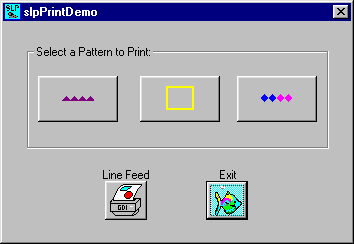
When you select any one of the three patterns, printer will print. The "Line Feed" button will advance label by one line.
Chapter 4
Printing under Different Baud Rates
OBJECTIVE: This Chapter combines what we have learned in Chapter 2 and 3 and creates a small application called slpDem1.
The slpDem1 application window is shown below. This sample application allows the user to change the printer baud rate and print.
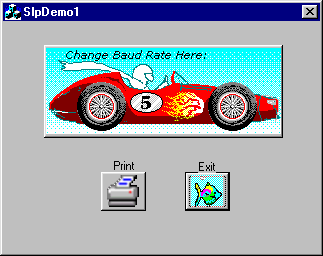
After you press the big button "Change Baud Rate Here:", you will get another dialog:
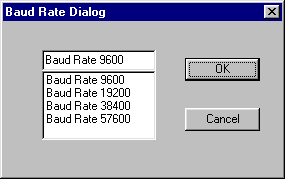
This dialog allows you to change printer baud rate. After that you can print at the baud rate you selected.
If you would like to create a similar application, please follow the same instruction that we used in Chapter 2 and 3 to create a MFC project and add the segment of codes that are printed in bold in the following example.
// SlpDemo1Dlg.cpp : implementation file
// Author: Amy Yang
// Date: 1/15/98
#include "stdafx.h"
#include "SlpDemo1.h"
#include "SlpDemo1Dlg.h"
#include "SelectBaudRate.h"
#include "slpapi32.hpp"
#ifdef _DEBUG
#define new DEBUG_NEW
#undef THIS_FILE
static char THIS_FILE[] = __FILE__;
#endif
/////////////////////////////////////////////////////////////////////////////
// CAboutDlg dialog used for App About
class CAboutDlg : public CDialog
{
public:
CAboutDlg();
// Dialog Data
//{{AFX_DATA(CAboutDlg)
enum { IDD = IDD_ABOUTBOX };
//}}AFX_DATA
// ClassWizard generated virtual function overrides
//{{AFX_VIRTUAL(CAboutDlg)
protected:
virtual void DoDataExchange(CDataExchange* pDX);
// DDX/DDV support
//}}AFX_VIRTUAL
// Implementation
protected:
//{{AFX_MSG(CAboutDlg)
//}}AFX_MSG
DECLARE_MESSAGE_MAP()
};
CAboutDlg::CAboutDlg() : CDialog(CAboutDlg::IDD)
{
//{{AFX_DATA_INIT(CAboutDlg)
//}}AFX_DATA_INIT
}
void CAboutDlg::DoDataExchange(CDataExchange* pDX)
{
CDialog::DoDataExchange(pDX);
//{{AFX_DATA_MAP(CAboutDlg)
//}}AFX_DATA_MAP
}
BEGIN_MESSAGE_MAP(CAboutDlg, CDialog)
//{{AFX_MSG_MAP(CAboutDlg)
// No message handlers
//}}AFX_MSG_MAP
END_MESSAGE_MAP()
/////////////////////////////////////////////////////////////////////////////
// CSlpDemo1Dlg dialog
CSlpDemo1Dlg::CSlpDemo1Dlg(CWnd* pParent /*=NULL*/)
: CDialog(CSlpDemo1Dlg::IDD, pParent)
{
//{{AFX_DATA_INIT(CSlpDemo1Dlg)
//}}AFX_DATA_INIT
// Note that LoadIcon does not require a subsequent DestroyIcon in Win32
m_hIcon = AfxGetApp()->LoadIcon(IDR_MAINFRAME);
}
void CSlpDemo1Dlg::DoDataExchange(CDataExchange* pDX)
{
CDialog::DoDataExchange(pDX);
//{{AFX_DATA_MAP(CSlpDemo1Dlg)
DDX_Control(pDX, IDC_BUTTON_CHANGE_BAUDRATE, m_ctrRaceCar);
DDX_Control(pDX, IDCANCEL, m_exitFish);
DDX_Control(pDX, IDC_BUTTON_PRINT, m_print);
//}}AFX_DATA_MAP
}
BEGIN_MESSAGE_MAP(CSlpDemo1Dlg, CDialog)
//{{AFX_MSG_MAP(CSlpDemo1Dlg)
ON_WM_SYSCOMMAND()
ON_WM_PAINT()
ON_WM_QUERYDRAGICON()
ON_BN_CLICKED(IDC_BUTTON_PRINT, OnButtonPrint)
ON_WM_DESTROY()
ON_BN_CLICKED(IDC_BUTTON_CHANGE_BAUDRATE,
OnButtonChangeBaudrate)
//}}AFX_MSG_MAP
END_MESSAGE_MAP()
/////////////////////////////////////////////////////////////////////////////
// CSlpDemo1Dlg message handlers
BOOL CSlpDemo1Dlg::OnInitDialog()
{
CDialog::OnInitDialog();
// Add "About..." menu item to system menu.
// IDM_ABOUTBOX must be in the system command range.
ASSERT((IDM_ABOUTBOX & 0xFFF0) == IDM_ABOUTBOX);
ASSERT(IDM_ABOUTBOX < 0xF000);
CMenu* pSysMenu = GetSystemMenu(FALSE);
if (pSysMenu != NULL)
{
CString strAboutMenu;
strAboutMenu.LoadString(IDS_ABOUTBOX);
if (!strAboutMenu.IsEmpty())
{
pSysMenu->AppendMenu(MF_SEPARATOR);
pSysMenu->AppendMenu(MF_STRING, IDM_ABOUTBOX, strAboutMenu);
}
}
// Set the icon for this dialog. The framework does this automatically
// when the application’s main window is not a dialog
SetIcon(m_hIcon, TRUE); // Set big icon
SetIcon(m_hIcon, FALSE); // Set small icon
//load your icons on exit button and print button
m_exitFish.SetIcon(::LoadIcon(AfxGetInstanceHandle(),
(LPCTSTR) IDI_ICON1));
m_print.SetIcon(::LoadIcon(AfxGetInstanceHandle(),
(LPCTSTR) IDI_ICON2));
//load bitmap on change-baud-rate button
m_hBitmapRaceCar = ::LoadBitmap(AfxGetInstanceHandle(),
(LPCTSTR) IDB_BITMAP1);
m_ctrRaceCar.SetBitmap(m_hBitmapRaceCar );
//open printer port herrz;
int error;
hComm = SlpOpenPort("COM1", &error);
if( error >= 0)
MessageBox("Error in SlpOpenPort", "Slp Command Error",
MB_ICONEXCLAMATION | MB_OK );
if (!SlpInitDCB(hComm))
MessageBox("Error in SlpInitDCB", "Slp Command Error" ,
MB_ICONEXCLAMATION | MB_OK);
//set default baud rate:
m_defaultBaudRate = "Baud Rate 9600";
return TRUE; // return TRUE unless you set the focus to a control
}
void CSlpDemo1Dlg::OnSysCommand(UINT nID, LPARAM lParam)
{
if ((nID & 0xFFF0) == IDM_ABOUTBOX)
{
CAboutDlg dlgAbout;
dlgAbout.DoModal();
}
else
{
CDialog::OnSysCommand(nID, lParam);
}
}
// If you add a minimize button to your dialog, you will need the code below
// to draw the icon. For MFC applications using the document/view model,
// this is automatically done for you by the framework.
void CSlpDemo1Dlg::OnPaint()
{
if (IsIconic())
{
CPaintDC dc(this); // device context for painting
SendMessage(WM_ICONERASEBKGND, (WPARAM) dc.GetSafeHdc(), 0);
// Center icon in client rectangle
int cxIcon = GetSystemMetrics(SM_CXICON);
int cyIcon = GetSystemMetrics(SM_CYICON);
CRect rect;
GetClientRect(&rect);
int x = (rect.Width() - cxIcon + 1) / 2;
int y = (rect.Height() - cyIcon + 1) / 2;
// Draw the icon
dc.DrawIcon(x, y, m_hIcon);
}
else
{
CDialog::OnPaint();
}
}
// The system calls this to obtain the cursor to display while the user drags
// the minimized window.
HCURSOR CSlpDemo1Dlg::OnQueryDragIcon()
{
return (HCURSOR) m_hIcon;
}
void CSlpDemo1Dlg::OnButtonPrint()
{
//create bitmap patterns:
BYTE pattern1[] = {0x01,0x00,0x01,0x00,0x01,0x00,0x01,0x00,
0x01,0x00,0x01,0x00,0x01,0x00,0x01,0x00,
0x01,0x00,0x01,0x00,0x01,0x00,0x01,0x00,
0x01,0x00};
BYTE pattern2[] = {0x03,0x80,0x03,0x80,0x03,0x80,0x03,0x80,
0x03,0x80,0x03,0x80,0x03,0x80,0x03,0x80,
0x03,0x80,0x03,0x80,0x03,0x80,0x03,0x80,
0x03,0x80,0x03,0x80,0x03,0x80,0x03,0x80,
0x03,0x80,0x03,0x80};
BYTE pattern3[] = {0x07,0xC0,0x07,0xC0,0x07,0xC0,0x07,0xC0,
0x07,0xC0,0x07,0xC0,0x07,0xC0,0x07,0xC0,
0x07,0xC0,0x07,0xC0,0x07,0xC0,0x07,0xC0,
0x07,0xC0,0x07,0xC0,0x07,0xC0,0x07,0xC0,
0x07,0xC0,0x07,0xC0};
BYTE pattern4[] = {0x0F,0xE0,0x0F,0xE0,0x0F,0xE0,0x0F,0xE0,
0x0F,0xE0,0x0F,0xE0,0x0F,0xE0,0x0F,0xE0,
0x0F,0xE0,0x0F,0xE0,0x0F,0xE0,0x0F,0xE0,
0x0F,0xE0,0x0F,0xE0,0x0F,0xE0,0x0F,0xE0,
0x0F,0xE0,0x0F,0xE0};
BYTE pattern5[] = {0x1F,0xF0,0x1F,0xF0,0x1F,0xF0,0x1F,0xF0,
0x1F,0xF0,0x1F,0xF0,0x1F,0xF0,0x1F,0xF0,
0x1F,0xF0,0x1F,0xF0,0x1F,0xF0,0x1F,0xF0,
0x1F,0xF0,0x1F,0xF0,0x1F,0xF0,0x1F,0xF0,
0x1F,0xF0,0x1F,0xF0};
BYTE pattern6[] = {0x3F,0xF8,0x3F,0xF8,0x3F,0xF8,0x3F,0xF8,
0x3F,0xF8,0x3F,0xF8,0x3F,0xF8,0x3F,0xF8,
0x3F,0xF8,0x3F,0xF8,0x3F,0xF8,0x3F,0xF8,
0x3F,0xF8,0x3F,0xF8,0x3F,0xF8,0x3F,0xF8,
0x3F,0xF8,0x3F,0xF8};
BYTE pattern7[] = {0x7F,0xFC,0x7F,0xFC,0x7F,0xFC,0x7F,0xFC,
0x7F,0xFC,0x7F,0xFC,0x7F,0xFC,0x7F,0xFC,
0x7F,0xFC,0x7F,0xFC,0x7F,0xFC,0x7F,0xFC,
0x7F,0xFC,0x7F,0xFC,0x7F,0xFC, 0x7F,0xFC,
0x7F,0xFC,0x7F,0xFC};
//make sure you have valid hComm and then call SlpPrint:
if (hComm != NULL)
{
for(int i = 0; i < 2; i++)
{
//print one line of the pattern
SlpPrint(hComm, pattern1, sizeof(pattern1));
SlpPrint(hComm, pattern2, sizeof(pattern2));
SlpPrint(hComm, pattern3, sizeof(pattern3));
SlpPrint(hComm, pattern4, sizeof(pattern4));
SlpPrint(hComm, pattern5, sizeof(pattern5));
SlpPrint(hComm, pattern6, sizeof(pattern6));
SlpPrint(hComm, pattern7, sizeof(pattern7));
//then print a white line by vertical tab
SlpVerticalTab(hComm, 5);
}
}
}
void CSlpDemo1Dlg::OnDestroy()
{
CDialog::OnDestroy();
int closeErr;
if(hComm != NULL)
if (SlpClosePort(hComm, &closeErr) == FALSE)
MessageBox("Error in SlpClosePort", "Close Port Error" ,
MB_ICONEXCLAMATION | MB_OK);
}
void CSlpDemo1Dlg::OnButtonChangeBaudrate()
{
SelectBaudRate selectBaudRate(NULL, hComm, &m_defaultBaudRate);
selectBaudRate.DoModal();
m_defaultBaudRate = selectBaudRate.GetBaudRate();
}
// SlpDemo1Dlg.h : header file
// Author: Amy Yang
// Date: 1/15/98
#if !defined(AFX_SLPDEMO1DLG_H__D3495727_8CC5_11D1_9376_006097DF9A77__INCLUDED_)
#define AFX_SLPDEMO1DLG_H__D3495727_8CC5_11D1_9376_006097DF9A77__INCLUDED_
#if _MSC_VER >= 1000
#pragma once
#endif // _MSC_VER >= 1000
/////////////////////////////////////////////////////////////////////////////
// CSlpDemo1Dlg dialog
class CSlpDemo1Dlg : public CDialog
{
// Construction
public:
CSlpDemo1Dlg(CWnd* pParent = NULL); // standard constructor
HANDLE hComm;
HBITMAP m_hBitmapRaceCar;
CString m_defaultBaudRate;
// Dialog Data
//{{AFX_DATA(CSlpDemo1Dlg)
enum { IDD = IDD_SLPDEMO1_DIALOG };
CButton m_ctrRaceCar;
CButton m_exitFish;
CButton m_print;
//}}AFX_DATA
// ClassWizard generated virtual function overrides //{{AFX_VIRTUAL(CSlpDemo1Dlg) protected:
virtual void DoDataExchange(CDataExchange* pDX);
// DDX/DDV support
//}}AFX_VIRTUAL
// Implementation
protected:
HICON m_hIcon;
// Generated message map functions
//{{AFX_MSG(CSlpDemo1Dlg)
virtual BOOL OnInitDialog();
afx_msg void OnSysCommand(UINT nID, LPARAM lParam);
afx_msg void OnPaint();
afx_msg HCURSOR OnQueryDragIcon();
afx_msg void OnButtonPrint();
afx_msg void OnDestroy();
afx_msg void OnButtonChangeBaudrate();
//}}AFX_MSG
DECLARE_MESSAGE_MAP()
};
//{{AFX_INSERT_LOCATION}}
// Microsoft Developer Studio will insert additional declarations immediately before the previous line.
#endif // !defined(AFX_SLPDEMO1DLG_H__D3495727_8CC5_11D1_9376_006097DF9A77__INCLUDED_)
// SelectBaudRate.cpp : implementation file
// Author: Amy Yang
// Date: 1/15/98
#include "stdafx.h"
#include "SlpDemo1.h"
#include "SelectBaudRate.h"
#include "Promk2cm.h"
#include "slpapi32.hpp"
#ifdef _DEBUG
#define new DEBUG_NEW
#undef THIS_FILE
static char THIS_FILE[] = __FILE__;
#endif
/////////////////////////////////////////////////////////////////////////////
// SelectBaudRate dialog
SelectBaudRate::SelectBaudRate(CWnd* pParent /*=NULL*/)
: CDialog(SelectBaudRate::IDD, pParent)
{
//{{AFX_DATA_INIT(SelectBaudRate)
// NOTE: the ClassWizard will add member initialization here
//}}AFX_DATA_INIT
}
SelectBaudRate::SelectBaudRate(CWnd* pParent, HANDLE comm,
CString* baudRate)
: CDialog(SelectBaudRate::IDD, pParent)
{
//{{AFX_DATA_INIT(SelectBaudRate)
// NOTE: the ClassWizard will add member initialization here
//}}AFX_DATA_INIT
hComm = comm;
defaultSetting = *baudRate;
}
CString SelectBaudRate::GetBaudRate()
{
return defaultSetting;
}
void SelectBaudRate::DoDataExchange(CDataExchange* pDX)
{
CDialog::DoDataExchange(pDX);
//{{AFX_DATA_MAP(SelectBaudRate)
DDX_Control(pDX, IDOK, m_ok);
DDX_Control(pDX, IDCANCEL, m_cancel);
DDX_Control(pDX, IDC_COMBO_BAUDRATE_LIST, m_baudRate);
//}}AFX_DATA_MAP
}
BEGIN_MESSAGE_MAP(SelectBaudRate, CDialog)
//{{AFX_MSG_MAP(SelectBaudRate)
//}}AFX_MSG_MAP
END_MESSAGE_MAP()
/////////////////////////////////////////////////////////////////////////////
// SelectBaudRate message handlers
void SelectBaudRate::OnOK()
{
//This demonstrates changing of baud rate by
// SlpChangeBaudRate() function
//in both slpPrinter and you computer. For example,
//when slpPrinter’s baud rate is changed
//to 38400, your computer’s baud rate will also be changed
//to the same baud rate at the same time.
int newBaudRate;
int baudRateSel = m_baudRate.GetCurSel();
//get the right baudrate
switch (baudRateSel)
{
case 0 : newBaudRate = BAUDRATE_9600;
defaultSetting = "Baud Rate 9600";
break;
case 1 : newBaudRate = BAUDRATE_19200;
defaultSetting = "Baud Rate 19200";
break;
case 2 : newBaudRate = BAUDRATE_38400;
defaultSetting = "Baud Rate 38400";
break;
case 3 : newBaudRate = BAUDRATE_57600;
defaultSetting = "Baud Rate 57600";
break;
default : newBaudRate = BAUDRATE_9600;
defaultSetting = "Baud Rate 9600";
break;
}
//change baud rate to the one selected:
if (hComm != NULL)
if(SlpChangeBaudRate(hComm, newBaudRate))
{
//display message box for current baud rate:
switch (baudRateSel)
{
case 0 :MessageBox("Baud Rate 9600",
" Test SlpChangeBaudRate" ,
MB_ICONEXCLAMATION | MB_OK);
break;
case 1 : MessageBox("Baud Rate 19200",
"Test SlpChangeBaudRate" ,
MB_ICONEXCLAMATION | MB_OK);
break;
case 2 : MessageBox("Baud Rate 38400",
"Test SlpChangeBaudRate" ,
MB_ICONEXCLAMATION | MB_OK);
break;
case 3 : MessageBox("Baud Rate 57600",
"Test SlpChangeBaudRate" ,
MB_ICONEXCLAMATION | MB_OK);
break;
default : MessageBox("Baud Rate 9600",
"Test SlpChangeBaudRate" ,
MB_ICONEXCLAMATION | MB_OK);
break;
}
}
else
MessageBox("Cannot change Baud Rate. Previous Baud Rate
retained.", "Test SlpChangeBaudRate" ,
MB_ICONEXCLAMATION | MB_OK);
CDialog::OnOK();
}
BOOL SelectBaudRate::OnInitDialog()
{
CDialog::OnInitDialog();
// Add baud rate string to list box here:
m_baudRate.AddString("Baud Rate 9600");
m_baudRate.AddString("Baud Rate 19200");
m_baudRate.AddString("Baud Rate 38400");
m_baudRate.AddString("Baud Rate 57600");
m_baudRate.SetWindowText(defaultSetting);
return TRUE; // return TRUE unless you set the focus to a control
// EXCEPTION: OCX Property Pages should return FALSE
}
// Author: Amy Yang
// Date: 1/15/98
#if !defined(AFX_SELECTBAUDRATE_H__D349572F_8CC5_11D1_9376_006097DF9A77__INCLUDED_)
#define AFX_SELECTBAUDRATE_H__D349572F_8CC5_11D1_9376_006097DF9A77__INCLUDED_
#if _MSC_VER >= 1000
#pragma once
#endif // _MSC_VER >= 1000
// SelectBaudRate.h : header file
//
/////////////////////////////////////////////////////////////////////////////
// SelectBaudRate dialog
class SelectBaudRate : public CDialog
{
// Construction
public:
SelectBaudRate(CWnd* pParent = NULL); // standard constructor
SelectBaudRate(CWnd* pParent, HANDLE comm,
CString* baudRate);
CString GetBaudRate();
HANDLE hComm;
CString defaultSetting;
// Dialog Data
//{{AFX_DATA(SelectBaudRate)
enum { IDD = IDD_DIALOG_CHANGE_BAUDRATE };
CButton m_ok;
CButton m_cancel;
CComboBox m_baudRate;
//}}AFX_DATA
// Overrides
// ClassWizard generated virtual function overrides
//{{AFX_VIRTUAL(SelectBaudRate)
protected:
virtual void DoDataExchange(CDataExchange* pDX);
// DDX/DDV support
//}}AFX_VIRTUAL
// Implementation
protected:
// Generated message map functions
//{{AFX_MSG(SelectBaudRate)
virtual void OnOK();
virtual BOOL OnInitDialog();
//}}AFX_MSG
DECLARE_MESSAGE_MAP()
};
//{{AFX_INSERT_LOCATION}}
// Microsoft Developer Studio will insert additional declarations immediately before the previous line.
#endif // !defined(AFX_SELECTBAUDRATE_H__D349572F_8CC5_11D1_9376_006097DF9A77__INCLUDED_)
More SLP API Functions
OBJECTIVE In this Chapter, we will continue to explain all the remaining SLP API
Functions that we have not discussed in previous chapters.
SlpGetPrinterStatus
Description This function will return printer status. There are six states as follows:
Syntax BYTE SlpGetPrinterStatus(HANDLE hComm, BYTE* result)
Parameters
hComm Handle to the port opened by SlpOpenPort function
result It holds one of the six printer status values.
STAT_PAPER_OUT
STAT_PAPER_JAM
STAT_HARD_ERR
STAT_COMM_ERR
STAT_IDLE
STAT_PLATEN_OPEN
Please refer to file promk2com.h for numerical values for these.
Returns BYTE This function returns TRUE or error message.
SlpTab
Description This function will move the initial print position to the right. The distance in dots, is determined by parameter nTab.
Syntax BYTE SlpTab (HANDLE hComm, int nTab)
Parameters
hComm Handle to the port opened by SlpOpenPort function
nTab Integer, the distance in dots to be tabbed.
Returns BYTE. If you call the function successfully, it will return true otherwise it returns TAB_CMD_FAILED or false.
SlpSetMargin
Description This function will set the distance from the first dot of the print head to the first dot position on the left edge of the label. This function is used primarily when labels less than 2" wide are used (because narrow labels are centered on the print head). The distance is in millimeters and is determined by the parameter margin of type BYTE. The default left margin value is zero. Once set, the margin value remains in effect until it is changed by this function again or function SlpMK2Indent(), or if the printer is reset.
The maximum margin value is as follows:
Model Maximum Margin
SLP 120 23 mm
SLP 220 47 mm
Syntax BYTE SlpSetMargin (HANDLE hComm, BYTE margin)
Parameters
hComm Handle to the port opened by SlpOpenPort function
margin BYTE, that represents the distance in millimeters to be set as margin from the left.
Returns BYTE. If you call the function successfully, it will return true otherwise it returns MARGIN_CMD_FAILED or false.
SlpMK2Indent
Description This function will set the distance from the dot of the print head to the first dot position on the left edge of the label. This command is used primarily when labels less than 2" wide are used (because narrow labels are centered on the print head). The distance is in dots and is determined by the parameter nDots. The default left margin value is zero. Once set, the margin value remains in effect until it is changed by this function or function SlpSetMargin(), or if the printer is reset.
The maximum margin value is as follows:
Model Maximum Margin
SLP 120 191 dots
SLP 220 255 dots
Syntax BYTE SlpMK2Indent (HANDLE hComm, int nDots)
Parameters
hComm Handle to the port opened by SlpOpenPort function
nTab Integer, the distance in dots to be set.
Returns BYTE. If you call the function successfully, it will return true otherwise it will return INDENT_CMD_FAILED or false.
Remarks This function does not apply to the SLP Pro printer model.
SlpMK2ReversFeed
Description This function will move the paper backward the number of dots specified by the parameter nDots. This may be used to unload labels. Warning: Labels may jam if an attempt is made to reverse feed over the die-cut "gap" between labels.
Syntax BYTE SlpMK2ReversFeed (HANDLE hComm, int nDots)
Parameters
hComm Handle to the port opened by SlpOpenPort function
nDots Integer, the distance in dots to be moved reversibly.
Returns BYTE. If you call the function successfully, it will return true otherwise it will return REVFEED_CMD_FAILED or false.
Remarks This function does not apply to the SLP Pro printer model.
SlpDensity
Description This function will set the print darkness of the primary color by defining the amount of energy used by the head to produce each dot. The energy used for "normal" (100%) darkness is determined by the setting of the "Media Type" jumper. Please refer to CMD_SETOPTIONS in our Firmware Specification for details if you want to change the energy level for "normal" darkness.
Syntax BYTE SlpMK2ReversFeed (HANDLE hComm, BYTE darkness)
Parameters
hComm Handle to the port opened by SlpOpenPort function
darkness The value predefined in header file promk2cm.h for the level of darkness. These values are:
// LIGHTEST_70PERCENT
// LIGHTEST_75PERCENT
// LIGHTEST_80PERCENT
// MEDIUM_LIGHT_85PERCENT
// MEDIUM_LIGHT_90PERCENT
// MEDIUM_LIGHT_95PERCENT
// NORMAL_100PERCENT
// NORMAL_105PERCENT
// NORMAL_110PERCENT
// MEDIUM_DARK_115PERCENT
// MEDIUM_DARK_120PERCENT
// MEDIUM_DARK_125PERCENT
// DARK_130PERCENT
// DARK_135PERCENT
// VERY_DARK_140PERCENT
// VERY_DARK_145PERCENT
// DARLEST_150PERCENT
Note: Values other the above are ignored by the printer.
Returns BYTE. If you call the function successfully, it will return true otherwise it will return DENSITY_CMD_FAILED or false.
SlpNoOperation
Description This function performs "No Operation". It is used primarily to pad a partially transmitted record when the printer need to be reset. SLP 120 and 220 will ignore this function call. This only applies to the SLP Pro printer model.
Syntax BYTE SlpNoOperation (HANDLE hComm)
Parameters
hComm Handle to the port opened by SlpOpenPort function
Returns BYTE. If you call the function successfully, it will return true otherwise it will return an error or false.
SlpFirmWareVersion
Description This function will request version of printer firmware. The version type value always has a base value of 80 hex. The firmware version number is added to the base value to produce version number that will be stored in "result" after the function call.
Syntax BYTE SlpFirmWareVersion (HANDLE hComm, BYTE *result)
Parameters
hComm Handle to the port opened by SlpOpenPort function
result BYTE, it stores the version type sent back by printer.
Returns BYTE. If you call the function successfully, it will return true otherwise it will return an error or false.
SlpGetPrinterType
Description This function will request printer model number for SLP 120 and 220. This function call will be ignored by SLP Pro. The following numbers are the printer model number defined in header file MK2com.h.
#define SLP_EZ30 0xE1
#define SLP_PRO 0xE2
#define SLP_RESERVED 0xE3
#define SLP_120 0xE4
#define SLP_220 0xE5
Syntax BYTE SlpGetPrinterType (HANDLE hComm, BYTE *result)
Parameters
hComm Handle to the port opened by SlpOpenPort function
result BYTE, it stores the printer model type sent back by printer. SLP 120 and 220
Returns BYTE. If you call the function successfully, it will return true otherwise it will return an error or false.
SlpResetPrinter
Description This function will cause printer to perform the equivalent of a power-up reset.
Syntax BYTE SlpResetPrinter (HANDLE hComm)
Parameters
hComm Handle to the port opened by SlpOpenPort function
Returns BYTE. If you call the function successfully, it returns XON defined in header file promkcm.h otherwise it will return error.